If you want to install the Exchange Management Tools on another server
Please, Exchange Server Prerequisite detail is Exchange Server 2019 and SE prerequisites
Exchange Server 2019 and Subscription Edition system requirements
Exchange Server Management tools
Install the following software:
The system requirements for the Visual C++ Redistributable package do not explicitly mention support for the latest Windows Server versions. However, the redistributable package is safe to install on these versions of Windows.
Install the following Windows features:
- If you want to install the Exchange Server Management tools on supported Windows Server OS, make sure to install the following Windows features: PS
Install-WindowsFeature -Name Web-Mgmt-Console, Web-MetabaseIf you want to install the Exchange Server Management tools on supported Windows Client OS, make sure to install the following Windows features:
Enable-WindowsOptionalFeature -Online -FeatureName IIS-ManagementConsole, IIS-Metabase -AllDownload the Exchange ISO(Any CU/SE Version), mount the image, and then run the following command:
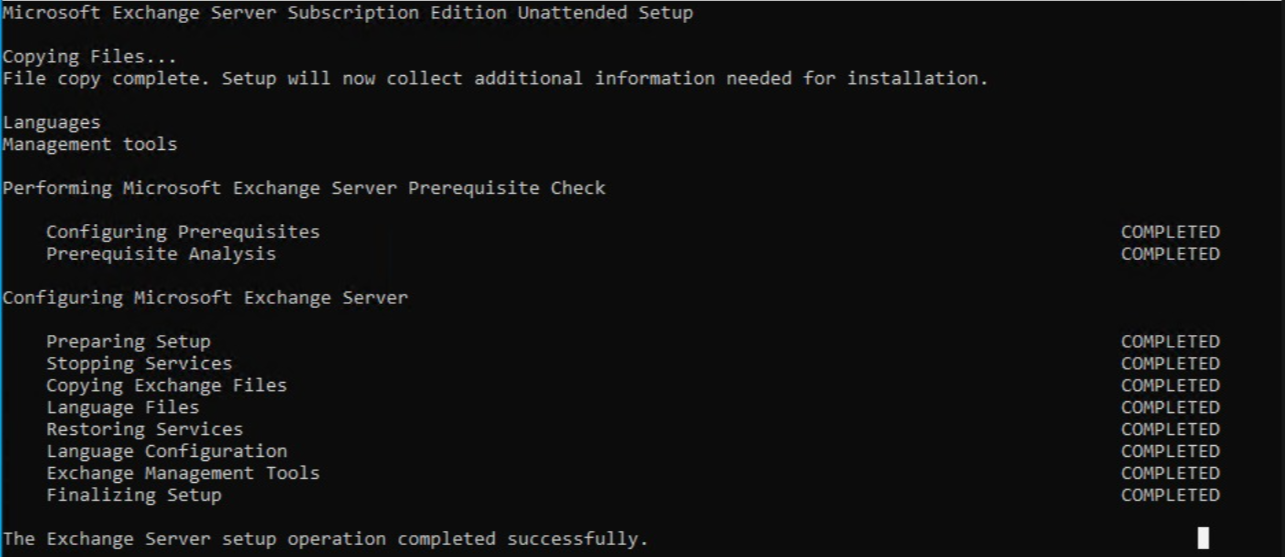
Setup.exe /IAcceptExchangeServerLicenseTerms_DiagnosticDataOFF /Mode:Install /Role:ManagementToolsFinally 🙂